Monday, June 8, 2009

RPM Fusion Repository

RPM Fusion is a merger of Dribble, Freshrpms, and Livna; our goal is to simplify end-user experience by grouping as much add-on software as possible in a single location.

Step 1:
You need to enable EPEL on RHEL5 or compatible distributions like CentOS before you enable RPM Fusion for EL.

Step 2: Download and install rpm package for CentOS
# wget
RPM Fusion free for RHEL5 or compatible like CentOS
RPM Fusion nonfree for RHEL5 or compatible like CentOS

For more information for Fedora and the above information, go to RPM Fusion Configuration

Friday, June 5, 2009

Understanding Login Sequence

Taken from Application Environment Setup Using /etc/profile.d/*

When a user login, the environment variables are set following the below order

  1. /etc/profile (for all users)
  2. /etc/profile.d (Application specific setup)
  3. ~/.bash_profile
  4. ~/.bashrc

For further information, read Login Sequence

Wednesday, June 3, 2009

Changing the hostname on CentOS

Step 1: Edit on /etc/sysconfig/network
# vim /etc/sysconfig/network
Change
HOSTNAME=myserver.name.com

Step 2: Edit /etc/hostname
# vim /etc/hostname
Change
myserver.name.com 

Step 3: Run hostname
# hostname -F /etc/hostname

Monday, June 1, 2009

Setting hardware Clock to System Time

Have you encountered that after a reboot your hardware clock is not in sync with the system clock as the hardware clock keeps the time when power is turned off, you may want to sync the hardware clock to the system time once it is accurate. This is a followup of the Article "How to setup NTP Server for local network"

# hwclock --systohc

Setting up NTP Server for Local Network

First for definition. From Wikipedia

The Network Time Protocol (NTP) is a protocol for synchronizing the clocks of computer systems over packet-switched, variable-latency data networks. NTP uses UDP on port 123 as its transport layer.


Setting Up NTP Server

Step 1: Install NTP Server and Client
# yum install ntp


Step 2: Configuration at /etc/ntp.conf
(The Basic Configuration is sufficient. A few things to note)
# vim /etc/ntp.conf

(Inside the /etc/ntp.conf) This statement is to allow local network to access the Server...
restrict 192.168.1.0 mask 255.255.255.0 nomodify notrap

(Inside the /etc/ntp.conf) Ensure the localhost has full access without any restructing password
restrict 127.0.0.1


Step 3: Start the Services

# chkconfig --levels 235 ntpd on
# ntpdate 0.pool.ntp.org
# service ntpd start

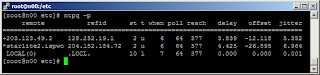
Check whether it is working
# ntpq -p


Setting Up NTP Clients to sync with the local NTP Server and NTP Client


Step 1: Install the ntpd services
# yum install ntp


Step 2: Configure the /etc/ntp.conf
# vim /etc/ntp.conf

(Inside the /etc/ntp.conf) Point to the local NTP Server
server 192.168.1.1


Step 3: Start the Services
# chkconfig --levels 235 ntpd on
# ntpdate 192.168.1.1
# service ntpd start


Check whether it is working
# ntpq -p
For more readings:
  1. How to Setup a Time Server in Linux from TechGuruLive (Debian-Based Server)