Taken from Resolve Leap Second Issues in Red Hat Enterprise Linux
Leap seconds are a periodic one-second adjustment of Coordinated Universal Time(UTC) in order to keep a system's time of day close to the mean solar time. However, the Earth's rotation speed varies in response to climatic and geological events, and due to this, UTC leap seconds are irregularly spaced and unpredictable.
Upcoming Leap Second Events:
The next leap second will occur on 2016 December 31, 23h 59m 60s UTC.
Environment:
Red Hat Enterprise Linux versions 4
Red Hat Enterprise Linux versions 5
Red Hat Enterprise Linux versions 6
Red Hat Enterprise Linux versions 7
Scope:
Customers running highly time-sensitive or un-patched RHEL servers.
Severity:
The severity depends on how far behind the customer in on updating RHEL and how sensitive their operations are to time adjustments. Some customers will just appreciate the news. Others running un-patched servers may experience kernel hangs.
Description:
Another leap second will be added on December 31, 2016.
Customers running RHEL servers that are completely patched and running NTP should not be concerned. (Applications should be fine, too, but it is always best to check with one's vendors.)
Customers running completely patched RHEL servers but not NTP will find their systems' times off by 1 second. Customers will need to manually correct that.
Customers running un-patched servers that cannot update their kernel, ntp and tzdata packages to at least the latest versions listed in the below document's "Known Issues" section's links should contact our Support Center for further assistance.
Resource:
Resolve Leap Second Issues in Red Hat Enterprise Linux: https://access.redhat.com/articles/15145#event
Showing posts with label NTP. Show all posts
Showing posts with label NTP. Show all posts
Tuesday, October 11, 2016

Tuesday, June 28, 2016
ntpdate failing to synchronise clock.
My client timing was ahead of the NTP Server by 15 hours. When I did a
The synchronization did not work.
To force the client to synchronise no matter how absurd the time differences, you have to use a "-b" parameter.
# ntpdate -q 0.centos.pool.ntp.org
The synchronization did not work.
To force the client to synchronise no matter how absurd the time differences, you have to use a "-b" parameter.
# ntpdate -b 0.centos.pool.ntp.org
Friday, July 6, 2012
Using ntpdate in debugging mode
The command ntpdate set the date and time via NTP. For more information on how to setup the NTP, do look at Configuring NTP Server and Client on CentOS 5.x
I found that a simple flag -d for ntpdate is very helpful
Resources:
How do I join pool.ntp.org?
I found that a simple flag -d for ntpdate is very helpful
# ntpdate -d 0.centos.pool.ntp.org
Looking for host 0.centos.pool.ntp.org and service ntp
host found : 202-150-213-154.rev.ne.com.sg
transmit(202.150.213.154)
.....
.....
reference time:    d3a041ca.66da1dd6  Fri, Jul  6 2012  0:39:38.401
originate timestamp: d3a04688.94d79870  Fri, Jul  6 2012  0:59:52.581
transmit timestamp:  d3a04688.93710d5e  Fri, Jul  6 2012  0:59:52.575
Resources:
How do I join pool.ntp.org?
Tuesday, July 5, 2011
Clock skew detected. Your build may be incomplete
Sometimes when you compiling a program in your /home directoryand when you run a make you receive this error
This occurs when the Server you are logging on and the NFS Server has discrepancy in their time. The solution is to synchronize their time, best with a time server. For more information, see Configuring NTP Server and Client on CentOS 5.x on how to set up a NTP Server and NTP Client
make: : Clock skew detected. Your build may be incomplete
This occurs when the Server you are logging on and the NFS Server has discrepancy in their time. The solution is to synchronize their time, best with a time server. For more information, see Configuring NTP Server and Client on CentOS 5.x on how to set up a NTP Server and NTP Client
Thursday, December 31, 2009
ntpdate no server suitable for synchronization found
I was configuring one of head node of our cluster server to synchronise from our time server in our organisation, and in turn the head node becomes a NTP Server for the compute nodes that on a private IP addresses. As I was configuring the compute nodes and encounter "ntpdate[4933]: no server suitable for synchronization found"
I configured the ntp servers and ntp clients according to Setting up NTP Server for Local Network. And yet the error remain unresolved. Finally, I came across a solution
I configured the ntp servers and ntp clients according to Setting up NTP Server for Local Network. And yet the error remain unresolved. Finally, I came across a solution
- Open /etc/ntp/step-tickers and replace with the name of your local NTP Server
- Open /etc/ntp/ntpservers and replace with the name of your local NTP Server
- Restart your ntp services. You should eradicate the problem
Monday, June 1, 2009
Setting hardware Clock to System Time
Have you encountered that after a reboot your hardware clock is not in sync with the system clock as the hardware clock keeps the time when power is turned off, you may want to sync the hardware clock to the system time once it is accurate. This is a followup of the Article "How to setup NTP Server for local network"
# hwclock --systohc
# hwclock --systohc
Setting up NTP Server for Local Network
First for definition. From Wikipedia
The Network Time Protocol (NTP) is a protocol for synchronizing the clocks of computer systems over packet-switched, variable-latency data networks. NTP uses UDP on port 123 as its transport layer.
Setting Up NTP Server
Step 1: Install NTP Server and Client
# yum install ntp
Step 2: Configuration at /etc/ntp.conf
(The Basic Configuration is sufficient. A few things to note)
# vim /etc/ntp.conf
(Inside the /etc/ntp.conf) This statement is to allow local network to access the Server...
restrict 192.168.1.0 mask 255.255.255.0 nomodify notrap
(Inside the /etc/ntp.conf) Ensure the localhost has full access without any restructing password
restrict 127.0.0.1
Step 3: Start the Services
# chkconfig --levels 235 ntpd on
# ntpdate 0.pool.ntp.org
# service ntpd start
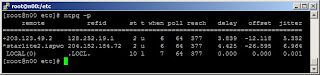
Check whether it is working
# ntpq -p
Setting Up NTP Clients to sync with the local NTP Server and NTP Client
Step 1: Install the ntpd services
# yum install ntp
Step 2: Configure the /etc/ntp.conf
# vim /etc/ntp.conf
(Inside the /etc/ntp.conf) Point to the local NTP Server
server 192.168.1.1
Step 3: Start the Services
# chkconfig --levels 235 ntpd on
# ntpdate 192.168.1.1
# service ntpd start
Check whether it is working
# ntpq -p
For more readings:
The Network Time Protocol (NTP) is a protocol for synchronizing the clocks of computer systems over packet-switched, variable-latency data networks. NTP uses UDP on port 123 as its transport layer.
Setting Up NTP Server
Step 1: Install NTP Server and Client
# yum install ntp
Step 2: Configuration at /etc/ntp.conf
(The Basic Configuration is sufficient. A few things to note)
# vim /etc/ntp.conf
(Inside the /etc/ntp.conf) This statement is to allow local network to access the Server...
restrict 192.168.1.0 mask 255.255.255.0 nomodify notrap
(Inside the /etc/ntp.conf) Ensure the localhost has full access without any restructing password
restrict 127.0.0.1
Step 3: Start the Services
# chkconfig --levels 235 ntpd on
# ntpdate 0.pool.ntp.org
# service ntpd start
Check whether it is working
# ntpq -p
Setting Up NTP Clients to sync with the local NTP Server and NTP Client
Step 1: Install the ntpd services
# yum install ntp
Step 2: Configure the /etc/ntp.conf
# vim /etc/ntp.conf
(Inside the /etc/ntp.conf) Point to the local NTP Server
server 192.168.1.1
Step 3: Start the Services
# chkconfig --levels 235 ntpd on
# ntpdate 192.168.1.1
# service ntpd start
Check whether it is working
# ntpq -p
For more readings:
- How to Setup a Time Server in Linux from TechGuruLive (Debian-Based Server)
Thursday, May 14, 2009
Setting NTP Client on CentOS
To set your CentOS Server as a NTP Client, here how
# yum install ntp
# chkconfig --levels 235 ntpd on
# ntpdate 0.pool.ntp.org
# /etc/init.d/ntpd start
# yum install ntp
# chkconfig --levels 235 ntpd on
# ntpdate 0.pool.ntp.org
# /etc/init.d/ntpd start
Subscribe to:
Posts (Atom)
